Agent approvals
Read the requested tool action and approve or deny it while the agent is waiting.
Flame Mobile for iOS and Android will be available soon. Follow agents, review Git, manage todos, and reach your terminal while the environment stays on your computer.
A coding agent can ask for approval, a test run can fail, or a deployment command can finish while you are away from the development machine. Waiting until you return turns a short decision into an idle queue.
A conventional remote desktop is a poor fit for this. Desktop panels, tiny terminal text, and pointer-driven controls become difficult to use on a narrow touch screen.
Flame Mobile exposes the focused actions that unblock work while repositories, credentials, containers, terminals, and running processes stay on the macOS, Windows, or Linux host.
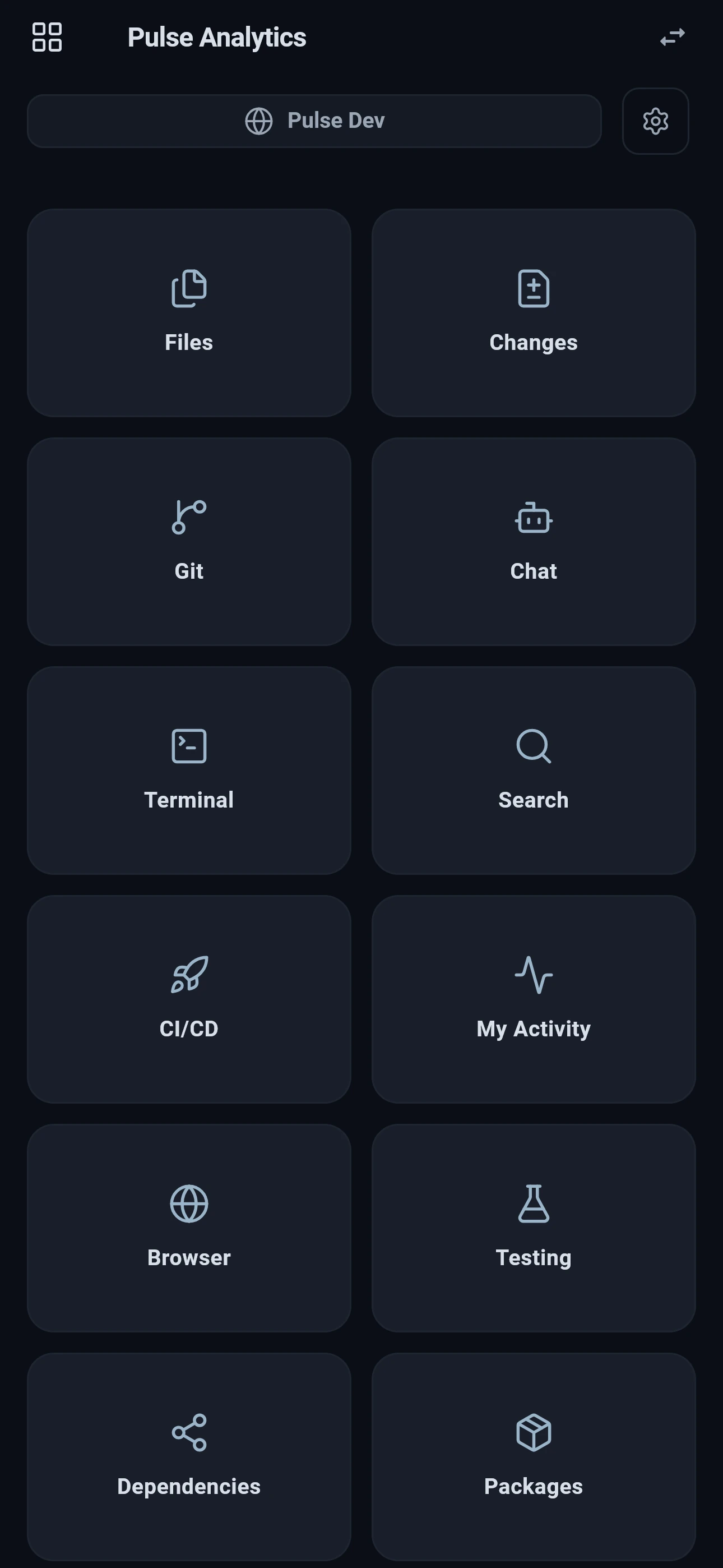
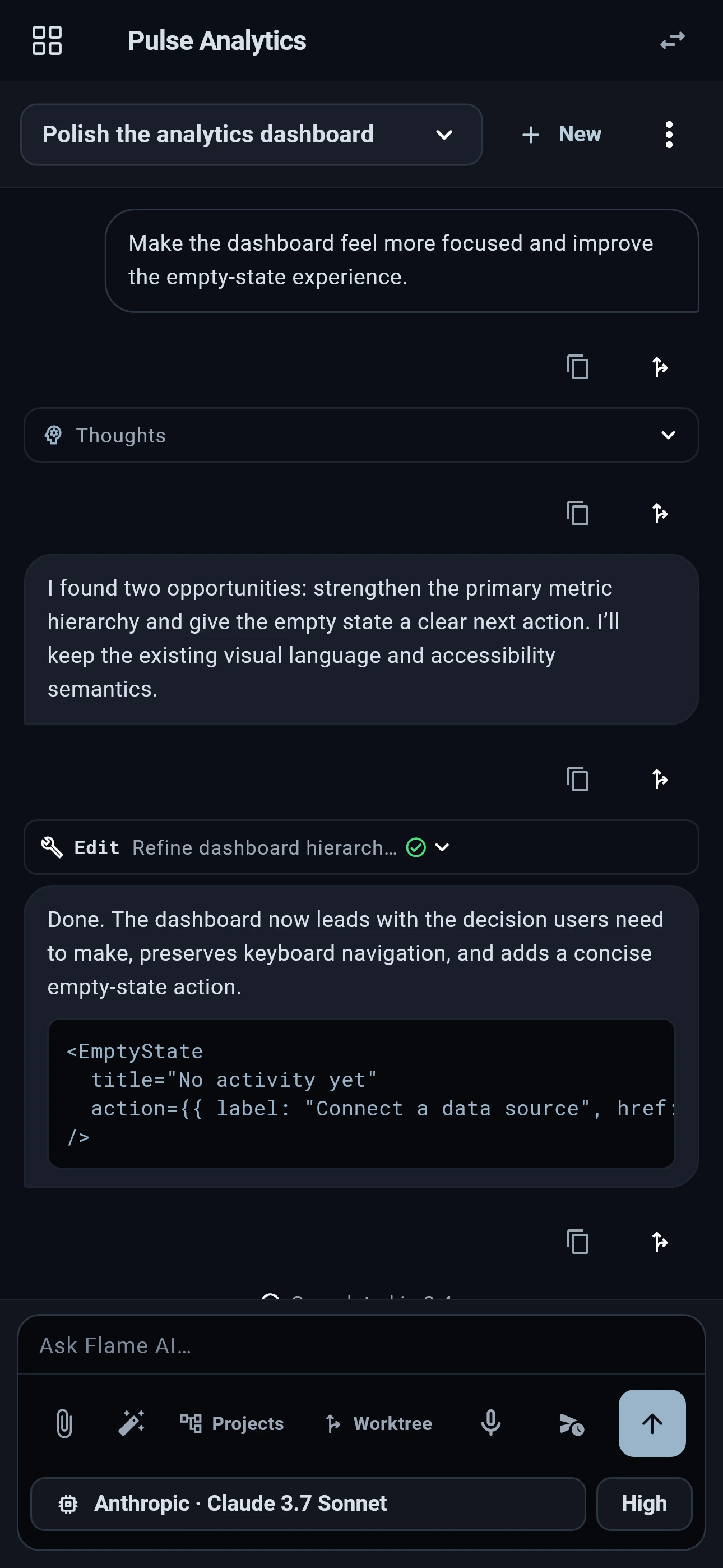
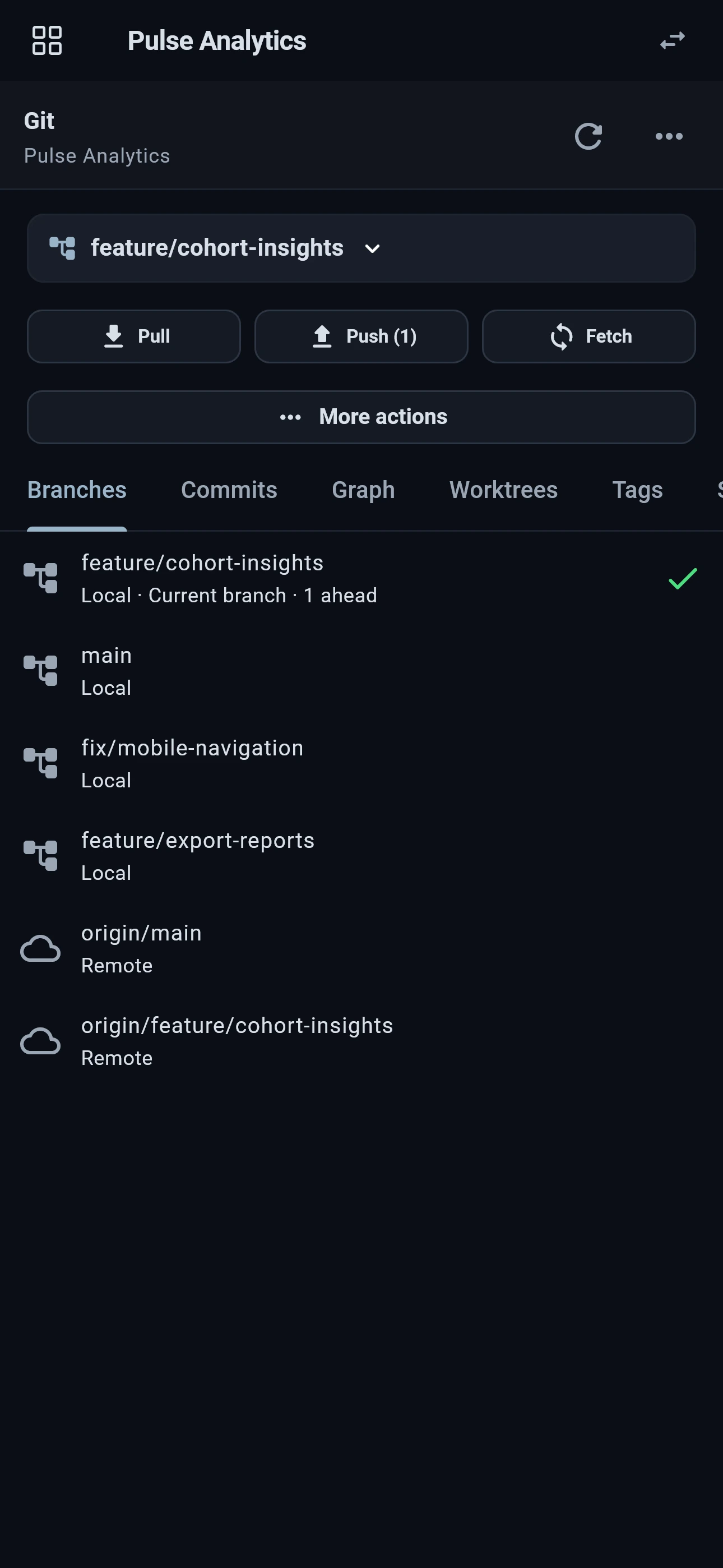
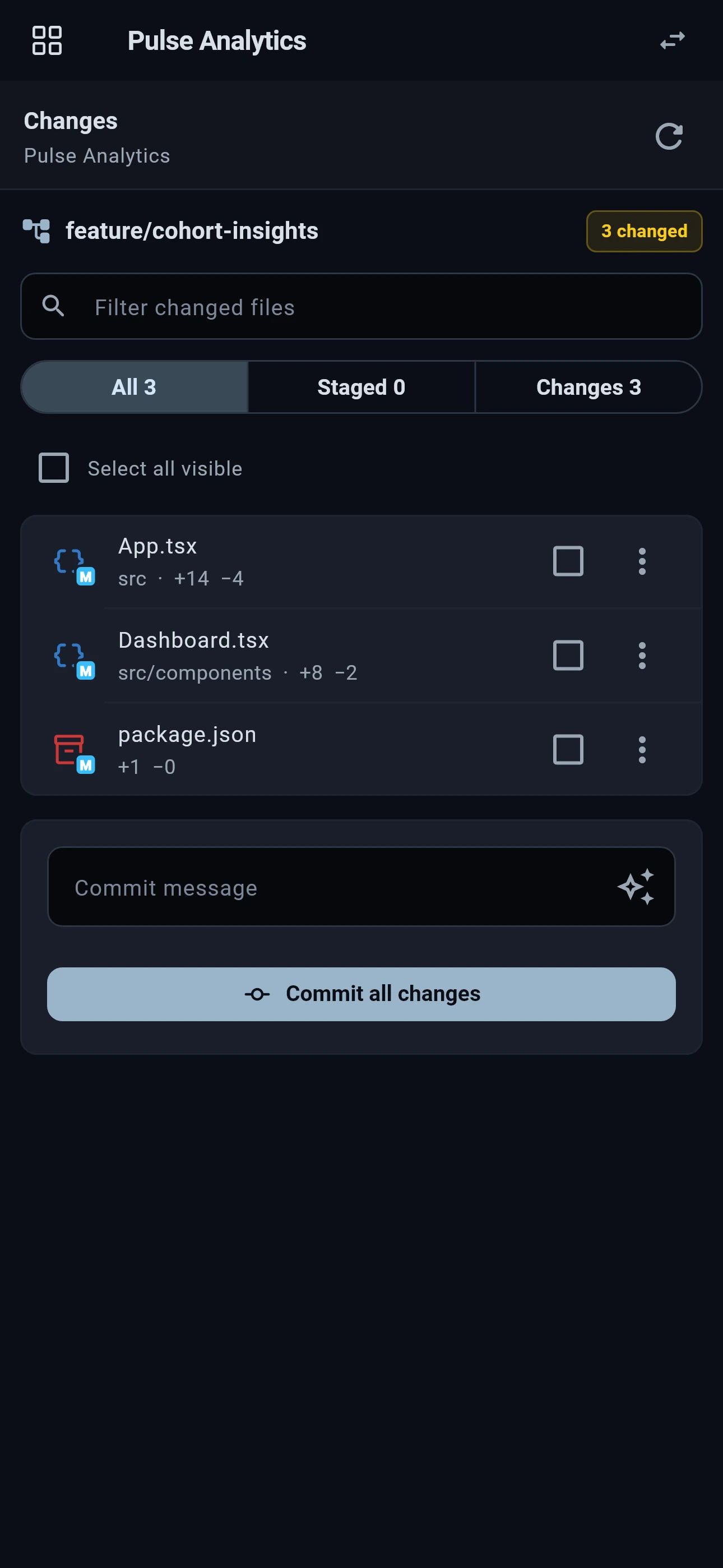
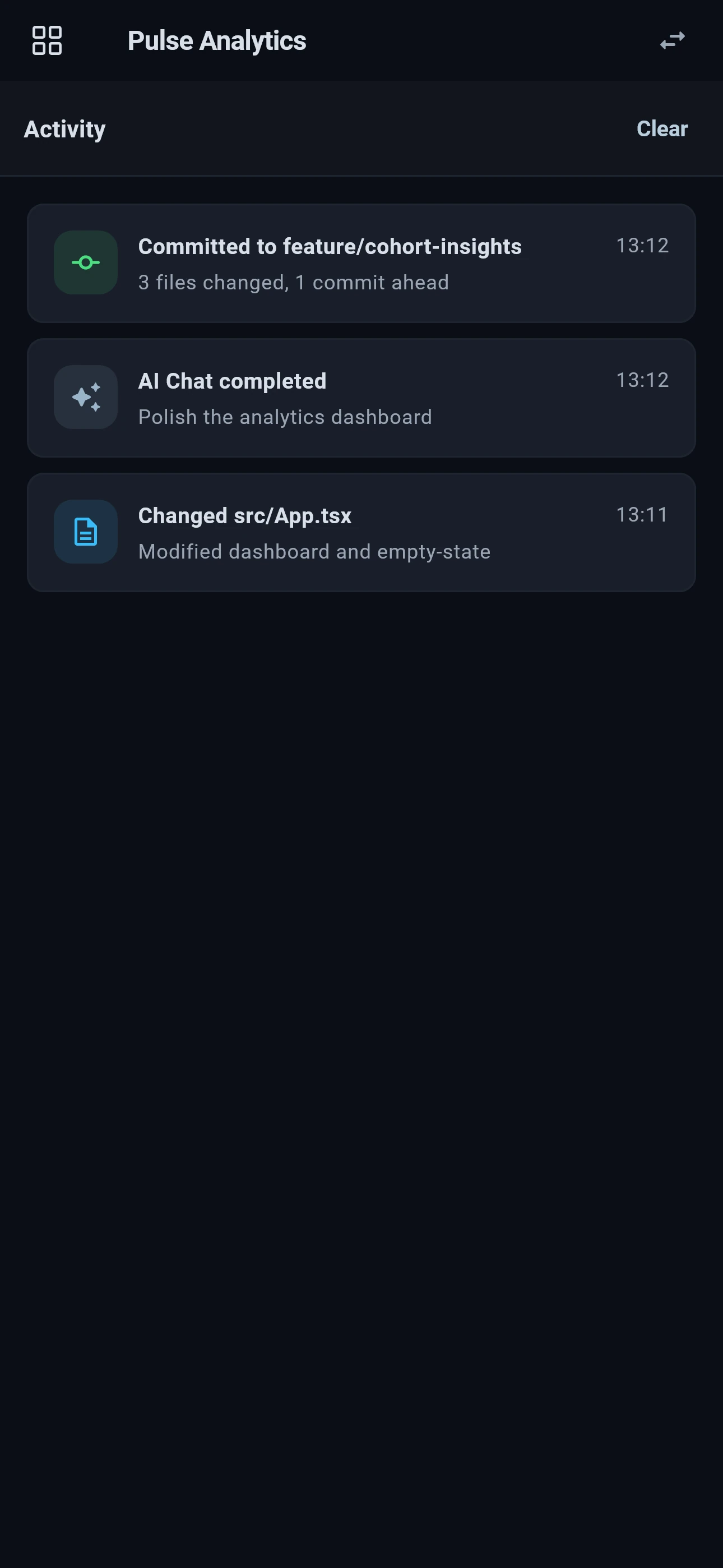
Read the requested tool action and approve or deny it while the agent is waiting.
Continue a task, answer a question, or check what an agent changed.
Inspect repository state and handle a focused commit, pull, or push from the host.
Reconnect to a project terminal, inspect a build, or restart a process.
Read project files and see what changed without streaming an entire desktop.
Open assigned work and prepare a task for an agent from the phone.
Secured Access uses Flame Secure Relay. The host and phone establish an end-to-end encrypted channel, and the relay does not receive the session key.
When you have access to Flame Mobile, choose Secured Access in Flame Desktop to enable Secure Relay.
Scan the QR code inside the native app, then enter the phone's two-digit approval code in Flame Desktop.
Use files, AI chat, Git, tasks, approvals, activity, or a real terminal sized for a phone.
Set an expiry, revoke a device immediately, turn access off, or rotate the host identity.
Agent tasks keep running on the host. From your phone, you can follow activity, answer questions, approve actions, and decide what deserves review when the result is ready.
See how Flame manages parallel AI coding agentsFlame Mobile for iOS and Android will be available soon. Explore the companion and get product updates from its page.
Free to use on macOS, Windows, and Linux.